
Creating and sending a standalone SMS campaign in Force24 is a straightforward process. This guide walks you through every stage from initial setup to final scheduling.
Step 1: Initialise the campaign
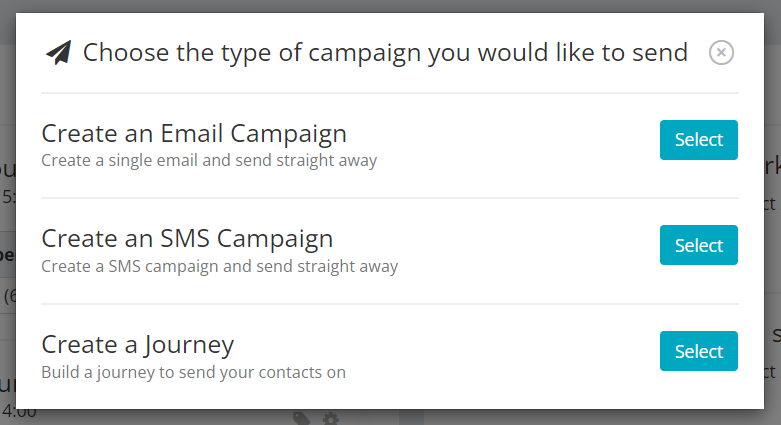
Start by clicking on the paper plane 'Create Campaign' icon .

Once there, select the 'Create SMS Campaign' option.
Step 2: Apply campaign tags (optional)
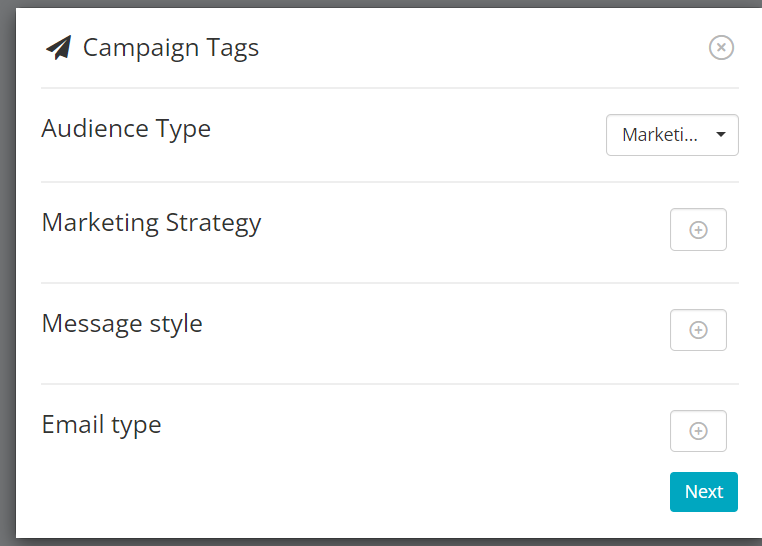
The next section allows you to tag your campaign, similarly to how you would tag your email campaigns. Once you have applied your desired tags, please click 'Next'.
Step 3: Configure sender details
Name: Enter a clear name for your campaign. This is how you will view your report in the 'Your Campaigns' section once your SMS has been sent.
From Name: This will default to what has been applied in your settings, which is usually your company name. You can edit this by simply typing your desired 'From name' into the text box.
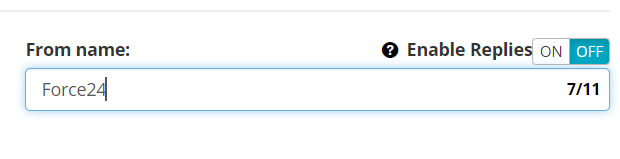
Enabling Replies: If you wish to enable replies, select 'ON'. When enabling replies, the SMS will be sent from a specific system number, and this cannot be changed or customised.
Step 4: Select your target audience
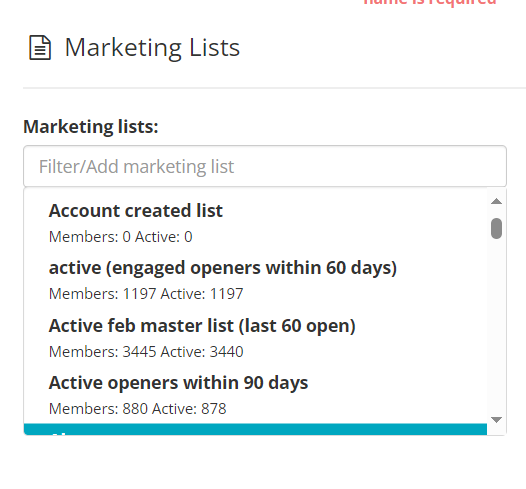
The next step is to select the list you wish to send to. The lists on the left are all the active lists available to send to. When you select your target list, it will automatically move to the right under 'Active marketing lists'.
Step 5: Compose and personalise your message
Type your message into the 'SMS Text' box.
Personalisation: This works in the same way as personalised fields in an email. For example, pulling the contact's first name into the SMS would be
[FirstName].Tracking Links: To insert a trackable URL placeholder, the destination must be written exactly like this:
[url=https://someurl.co.uk].Opt-Out Links: To ensure recipients can opt out, please use
[OptOut]or select the 'add opt out link' button within the SMS editor.
WARNING: Links placed within the
[url=]component are automatically shortened by our system. Avoid using external link shorteners, such as Bitly, here, as this can cause the URL to break.
Your SMS will preview on the right-hand side so you can check all your placeholders are pulling through correctly.
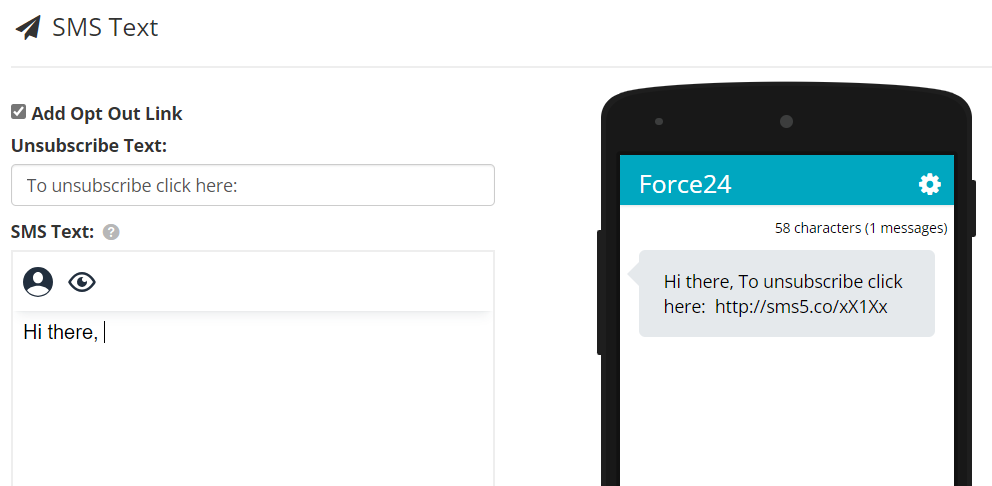
Once you are finished writing your SMS, click 'Next'.
Step 6: Schedule or send
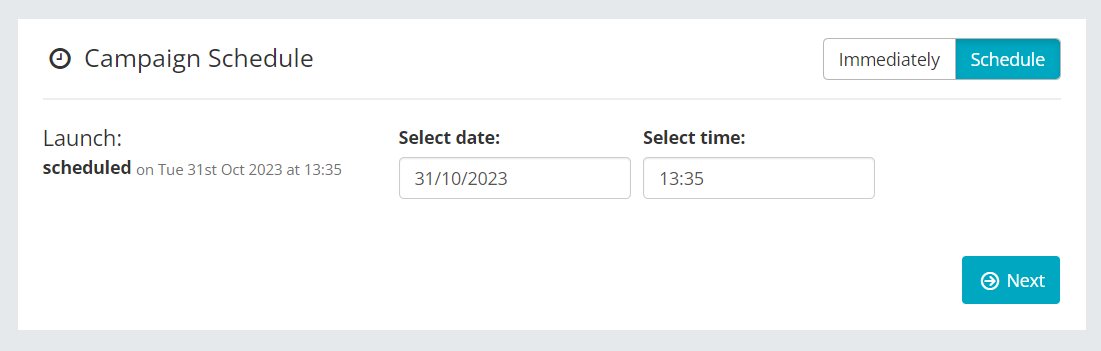
Here you can choose your delivery timing. You can either choose to send your campaign 'Immediately', or select 'Schedule' to pick a specific time and date.
Step 7: Review and approve
The final stage of your SMS Campaign is to check your work on the 'Campaign Overview' page. If you are happy that everything is set up correctly, please click 'Approve and Schedule' to send your SMS.

Monitoring your results
You will then be automatically directed to the Your Campaigns page, where you can track delivery rates, clicks, and user behaviour.
Need a hand? If you have any questions, feel free to reach out to us through the live chat function available in the bottom right bubble of your Force24 Platform. Our team is ready to assist you whenever you need it!